How ThemeRouter Works
Modernize your WordPress theme one ready section at a time.
ThemeRouter is a WordPress plugin for controlled, gradual theme migration. Create a route for ready content, preview the installed theme privately, enable the route, and leave every unmatched request on the active theme.
Content stays in WordPress
Active-theme fallback
One WordPress install
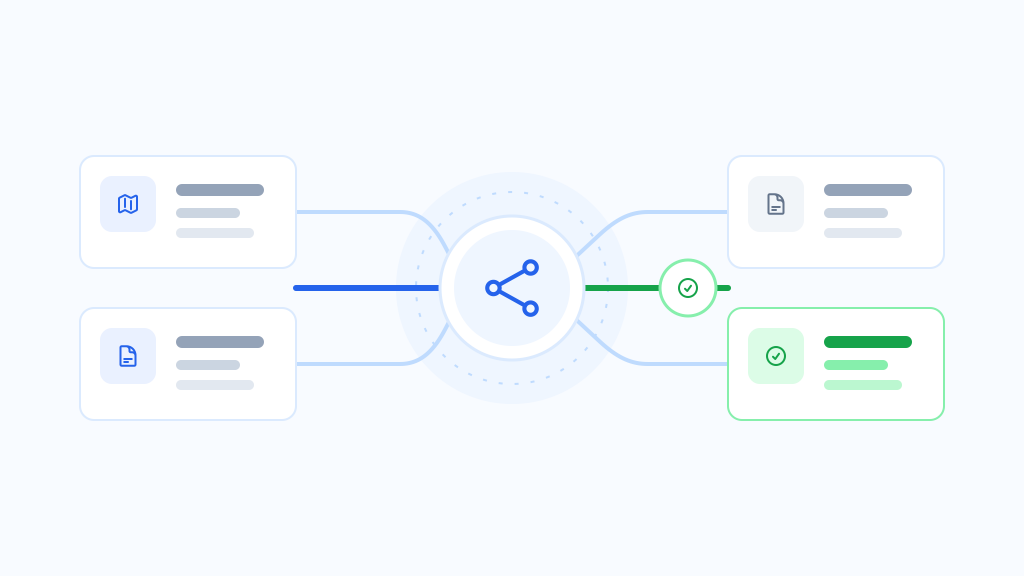
One WordPress site. Two themes. Route-based delivery.
ThemeRouter changes which theme renders the request. Your content, users, orders, and WordPress installation stay in place.
Visitor request
/shop/*
/case-studies/*
/blog/*
/about/
ThemeRouterMatches the request to a route and delivers the correct theme.
Theme served
New Shop ThemeRedesigned
Enterprise ThemeRedesigned
Current ThemeStable
Current ThemeStable
Redesigned route
Current theme
A controlled migration in four steps
Keep the stable experience live while each redesigned route earns its place.
1
Keep the current theme live
Active theme
Live
Current ThemeStable production experience
Your site continues to run on the current theme while you prepare the first route.
2
Create a draft route
Route
/shop/*
Theme
New Shop Theme
Match the smallest ready content area to an installed theme and keep the route in draft while you review it.
3
Preview privately, then enable
Private preview
Authorized users
Review the installed theme against real site content without making the route public. Enable it when the section is ready.
4
Validate, expand, or pause
Available controls
- Keep the route enabled
- Add the next ready route
- Pause or remove the assignment
Use ThemeRouter activity alongside your existing analytics, SEO, performance, and business checks. ThemeRouter does not replace those systems.
See the workflow on a WooCommerce redesign
Phase 1
Start with product pages
Product pages use the New Shop Theme. Cart and Checkout remain on the Current Theme.
Phase 2
Expand after team validation
Add category pages and search only after the team has reviewed compatibility, content, accessibility, performance, and business signals in its existing tools.
Phase 3
Move revenue-critical routes last
Cart and Checkout move once the entire shopping journey is validated.
Product pages
Category pages
Search results
Cart
Checkout
Start where risk is contained.
Keep revenue-critical routes stable until the redesigned experience is proven.
Route at the level your migration needs
Start narrow or route a complete content area when the workflow is ready.
Individual pages
Route a single page or custom page template.
Examples: /about/, /pricing/
Post types
Route all posts of a specific post type.
Examples: Posts, Case Studies
Taxonomies
Route by categories, tags, or custom taxonomies.
Examples: /category/news/, /taxonomy/solution/
WooCommerce areas
Route store areas like shop, cart, and checkout.
Examples: /shop/*, /cart/, /checkout/
Classic-to-block navigation
Keep navigation aligned while themes coexist.
Menu Sync maps a classic WordPress menu to a Navigation block and copies changes forward. The classic menu remains the source during the transition, so teams can modernize navigation alongside routed content.
Review each mapping and run the sync deliberately. ThemeRouter does not merge two independently edited navigation structures.

Designed to make every step reversible
Control stays with your team before, during, and after every routed change.
Active-theme fallback
Requests that do not match an enabled route continue through the active WordPress theme. Pausing or removing an assignment returns that route to the same fallback.
Unmatched requests
Active theme
Pause or remove a route
Route controls let an administrator stop using the assigned theme for that route. This changes theme routing; it does not undo content, theme, or configuration edits made elsewhere.
/shop/*Paused route → active-theme fallback
Validation stays with your team
ThemeRouter records bounded routing activity and exposes route status. Use your existing analytics, SEO, accessibility, performance, and business systems to decide whether the next section is ready.
Decision
Enable, pause, or expand
What ThemeRouter changes – and what it does not
No. ThemeRouter changes which theme renders a request. Your content remains in the same WordPress installation.
Yes. Routed sections use the redesigned theme while every other request continues through the current theme.
Pause or remove the assignment. Requests for that route then use the active-theme fallback. This changes routing only; it does not reverse unrelated content or configuration work.
A staging environment is still recommended for compatibility and release testing. ThemeRouter’s private preview adds a focused review step against current site content; it is not a replacement for staging or your normal quality process.