
A license connects the plugin to your ThemeRouter purchase for updates and plan access. You need administrator access to the WordPress site and access to the Freemius account or purchase email associated with the license.
Activate the license
- Open Settings > ThemeRouter in WordPress admin.
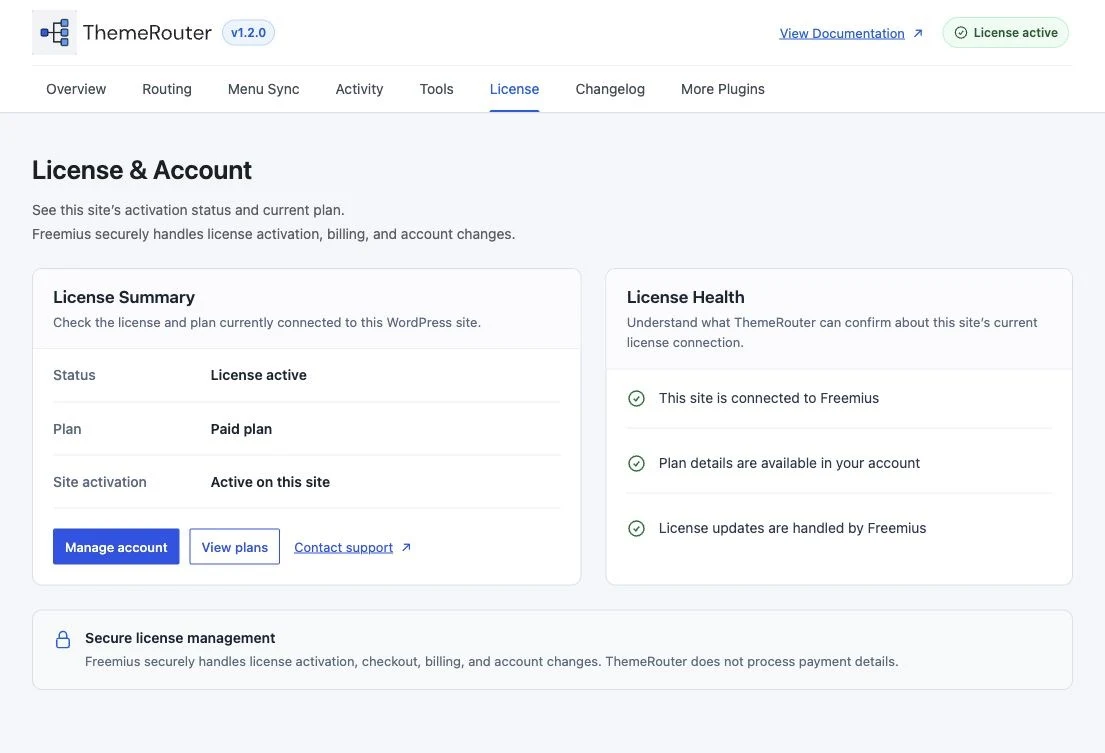
- Open the License tab.
- Follow the Freemius activation prompt when the site is not yet connected, or choose Manage account to review an existing connection.
- Complete the requested license action in Freemius, then return to ThemeRouter.
- Confirm the License Summary reports License active and Active on this site.
Find a missing license
Search the purchase email account for ThemeRouter or Freemius. You can also sign in to the Freemius customer portal to review licenses, site activations, invoices, and renewal details.
If activation fails
- Confirm that WordPress can make outbound HTTPS requests.
- Check whether all activation slots for the plan are already in use.
- Deactivate the license on an old staging or retired site if it no longer needs updates.
- Copy the exact error message before contacting support.
License management and theme-routing settings are separate. Local administrators can still access ThemeRouter settings when a license request cannot be completed.
Continue with configuration
After activation, review the settings and choose a low-risk resource for your first preview.