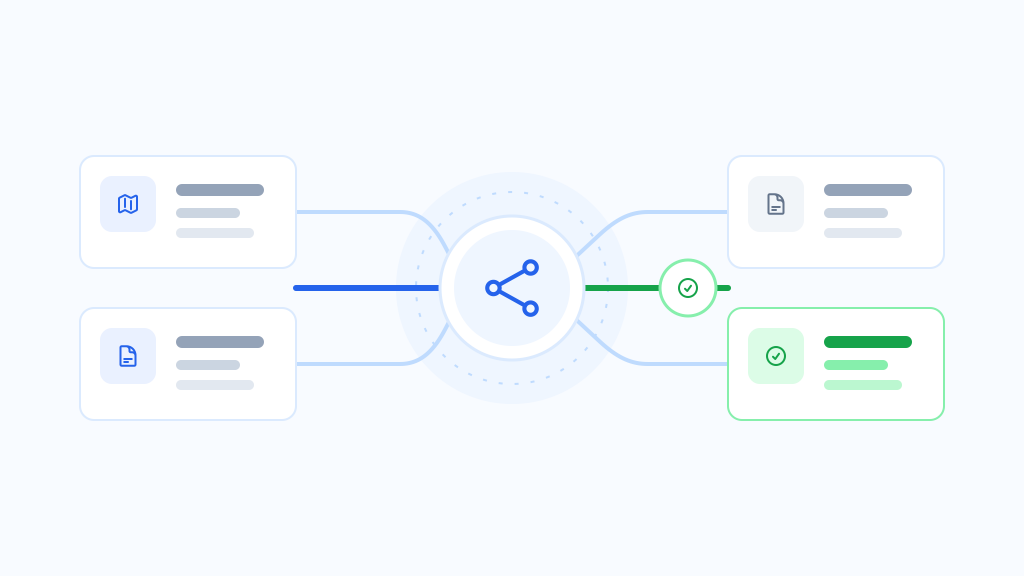
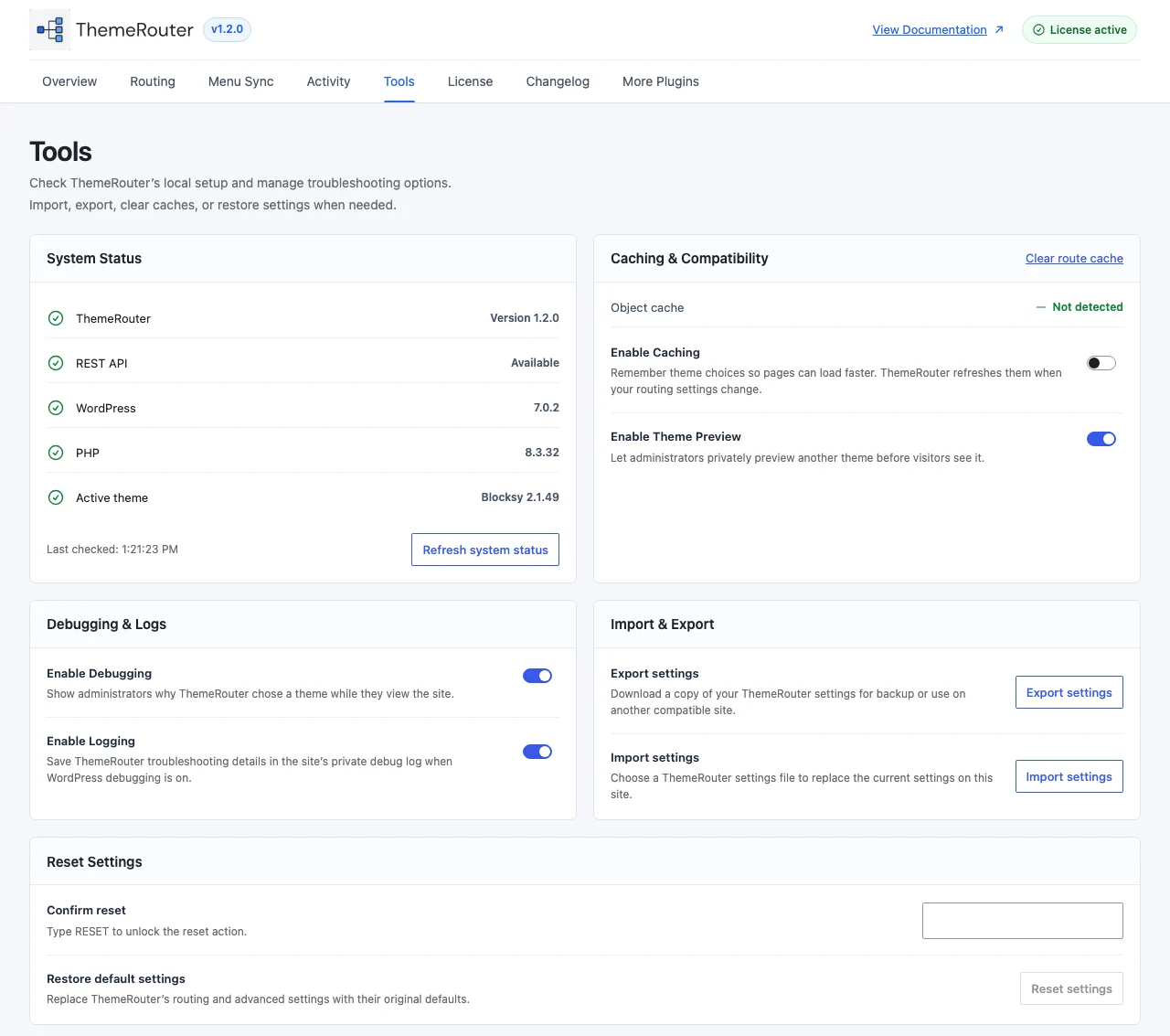
Preview Mode lets an authorized logged-in user inspect an installed theme on the current URL without changing the site-wide active theme. Visitors and search engines continue to receive the normal public route.
Start a preview
- Log in with a user account allowed to preview themes.
- Open the page, post, archive, or other URL you want to inspect.
- Use the ThemeRouter preview control in the WordPress admin bar.
- Choose an installed theme.
- Confirm the preview indicator shows the selected theme.
What to validate
- Header, footer, templates, and responsive layouts.
- Menus, search, forms, account links, and logged-in states.
- Structured data, canonical URLs, headings, and breadcrumbs.
- Theme-specific assets, fonts, JavaScript interactions, and performance.
- Plugin integrations used on the selected content type.
Exit Preview Mode
Use Exit Preview in the admin bar or remove the ThemeRouter preview query parameter from the URL. Exiting returns your account to the normal routing decision.
A private preview is not a public rollout and does not test anonymous-user caching by itself. Always test a persistent assignment in a controlled low-risk route before expanding it.
Ready to create a route?
Review the difference between temporary preview and persistent assignment first.