
A classic-to-block-theme migration changes both the frontend design and the way site owners manage templates. The difficult part is not installing the block theme; it is reconciling classic menu locations, widgets, Customizer settings, PHP templates, block templates, Navigation blocks, and Global Styles.
Map the configuration models
| Classic theme | Block theme |
|---|---|
| PHP template files | Block templates and template parts |
| Customizer settings | Global Styles and theme.json settings |
| Registered menu locations | Navigation blocks and wp_navigation entities |
| Widget areas | Block-based template regions or patterns |
Move to the block theme in reviewable stages
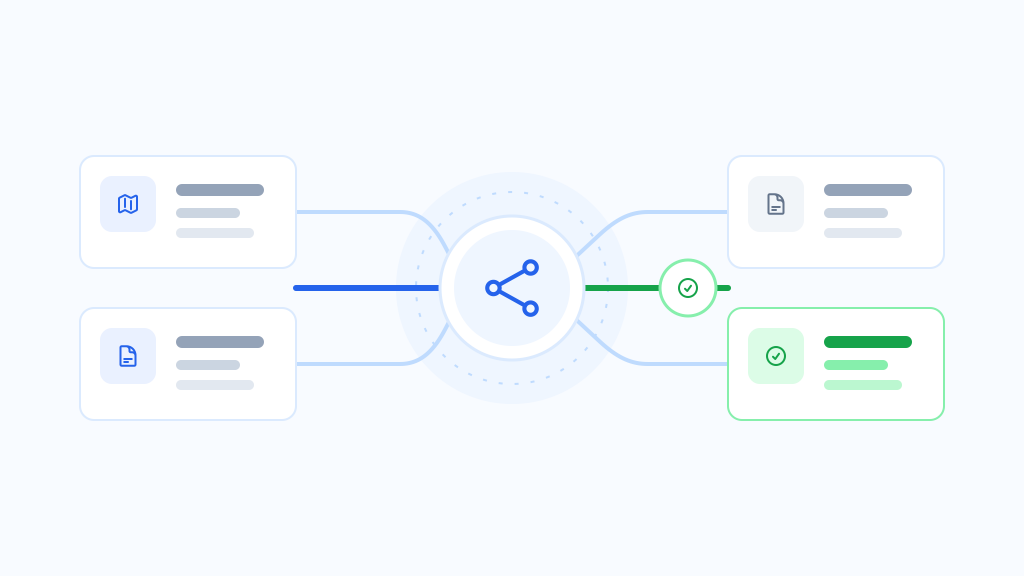
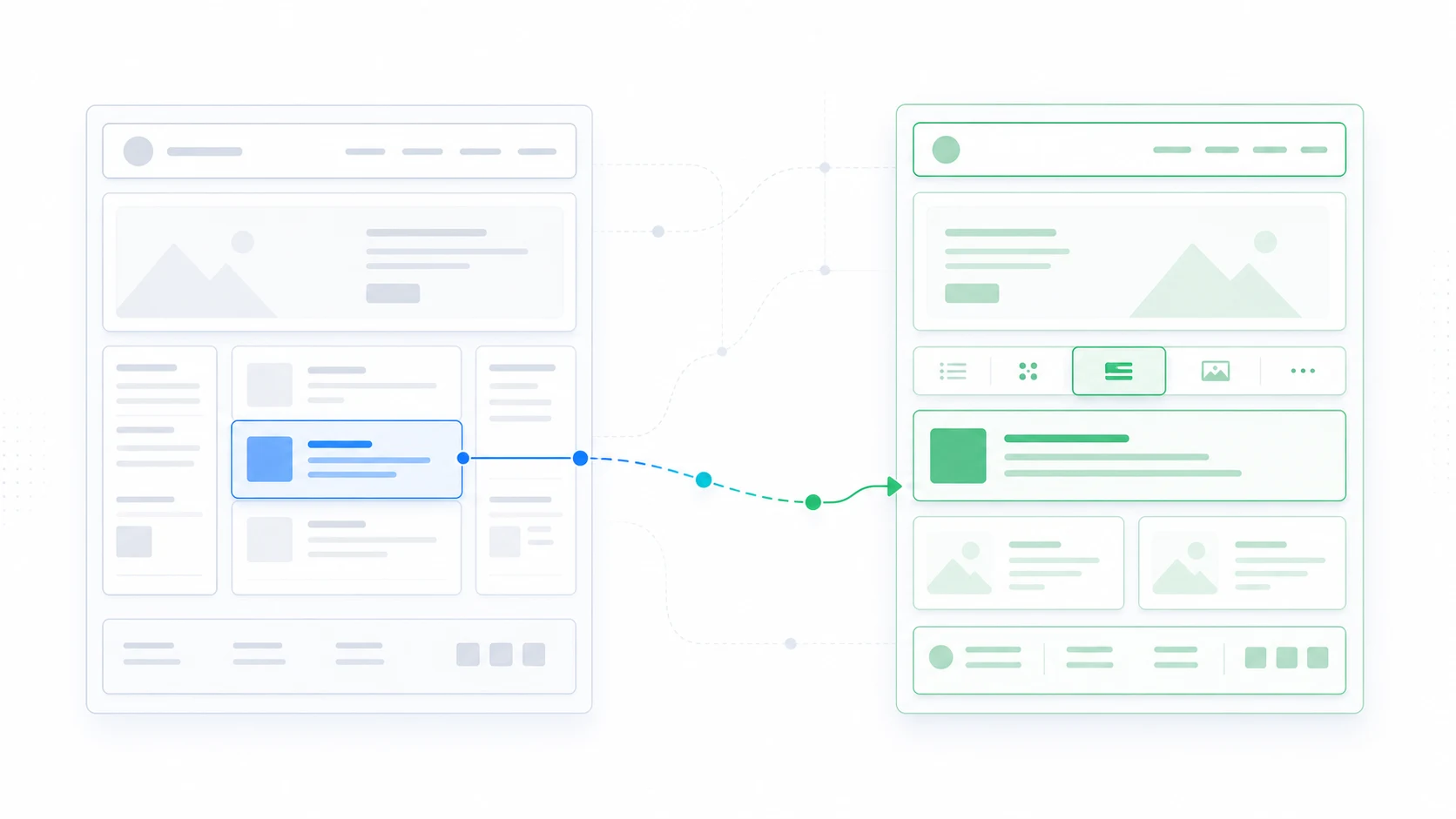
ThemeRouter can route selected content to an installed block theme while other routes remain on the active theme. Menu Sync supports the separate handoff from a classic menu to block navigation.
Build the destination system first
Create the block theme templates, template parts, patterns, typography, colors, spacing, and navigation before routing public content. Treat editor behavior as part of the product: authors need predictable controls and previews during the transition.
Choose a content family with clear templates
A case study or blog post type is often a better first candidate than the home page. It exercises single and archive templates while keeping the highest-risk global and transactional routes unchanged.
Plan navigation explicitly
Do not assume a classic menu automatically becomes a block Navigation entity with identical metadata and behavior. Back up the database, map the source and destination, synchronize deliberately, and validate desktop and mobile interaction.
Consolidate at the end
When the block theme covers the intended routes, move remaining global templates, remove transitional assignments, document editor workflows, and decide which classic configuration can be retired.
Migrate your WordPress theme one route at a time
Use ThemeRouter to preview an installed theme privately, enable selected routes when they are ready, and keep the active theme as the fallback elsewhere. Yearly plans include a 14-day free trial.
Leave a Reply