
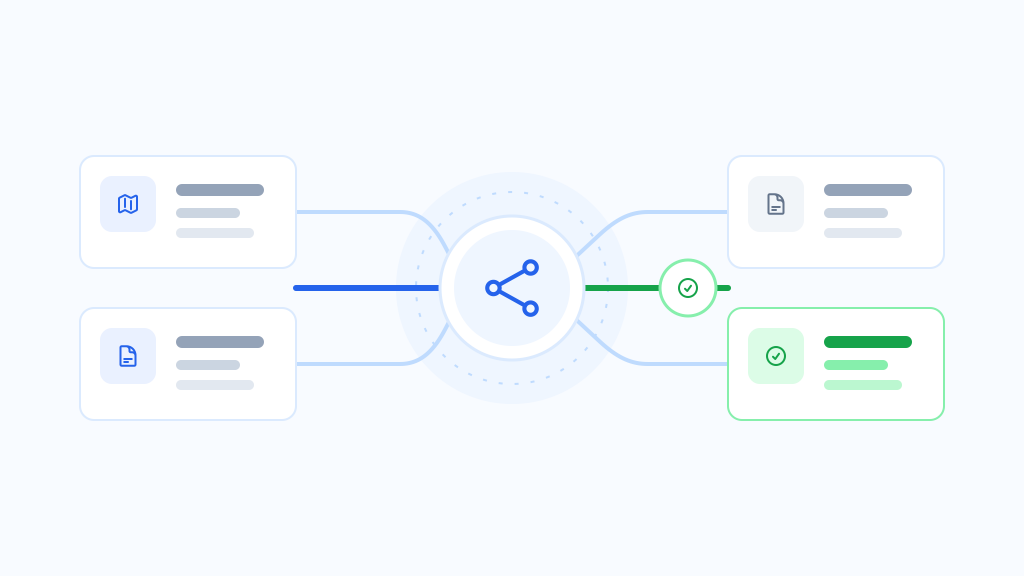


A private theme preview lets authorized users render a URL with another installed theme while normal visitors continue to receive the public theme. It is useful for design review against current content, but it is not the same as activating or assigning the theme.
Three preview methods
| Method | What it shows | Best use |
|---|---|---|
| Theme demo | Vendor-selected sample content | Initial visual evaluation |
| Staging site | A copied environment | Development and integration testing |
| Private request preview | Current URL and site data for an authorized user | Final route-specific review |
See how ThemeRouter fits this workflow
ThemeRouter supports private preview, route-level theme assignments, active-theme fallback, and controlled rollout for gradual WordPress theme migration.
What a private preview can reveal
- Template behavior with real post lengths, images, terms, and metadata.
- Missing theme configuration, menus, fonts, or plugin styling.
- Responsive and accessibility issues on representative routes.
- Changes to headings, breadcrumbs, schema, and canonical output.
What it does not prove
- Anonymous full-page cache behavior.
- How the route performs under visitor traffic.
- Compatibility with every URL in the content family.
- That ecommerce, account, or form flows are ready for production.
Move from preview to rollout
After review, create one persistent assignment on a controlled route, purge caches, and verify as a logged-out visitor. Monitor the route before applying the theme to a broader post type or taxonomy.
Do not share an authenticated preview URL as if it were a public client-review link. Preview access should remain capability-controlled and private.
Migrate your WordPress theme one route at a time
Use ThemeRouter to preview an installed theme privately, enable selected routes when they are ready, and keep the active theme as the fallback elsewhere. Yearly plans include a 14-day free trial.
Leave a Reply