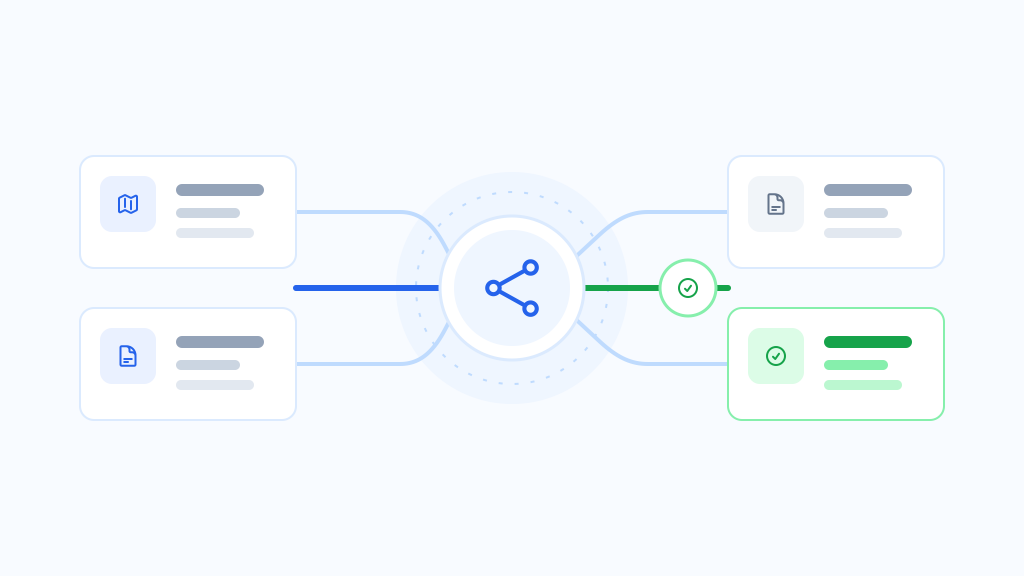
Rolling back a route means removing or changing the saved assignment that currently wins for that request. Prepare the expected fallback before changing the rule.
Roll back an individual post or page
- Open the assigned post or page.
- Set ThemeRouter to Use Active Theme or the unassigned option.
- Update the post.
- Purge page, object, and edge caches as required by the hosting stack.
- Verify the public URL while logged out.
Roll back a post type or taxonomy
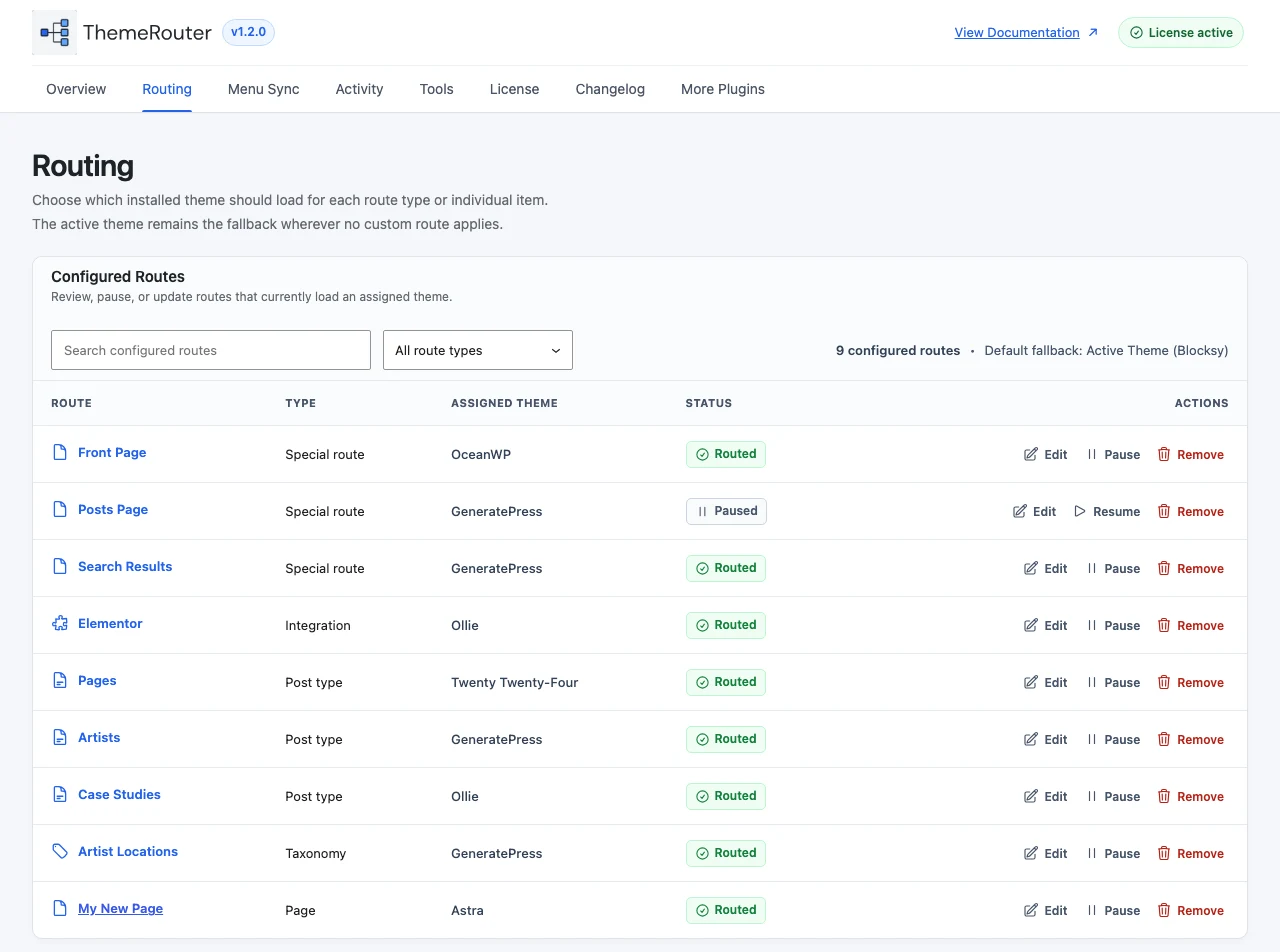
Open Settings > ThemeRouter, remove the matching global assignment, save, purge caches, and test multiple URLs in the affected content area.
Confirm the actual fallback
Because more specific rules override broader rules, removing one assignment may expose another ThemeRouter rule. Use the debug report if the route does not return to the theme you expected.
Keep the destination theme installed until the rollback is fully verified. Removing theme files before clearing assignments can create invalid configuration and harder-to-diagnose failures.