
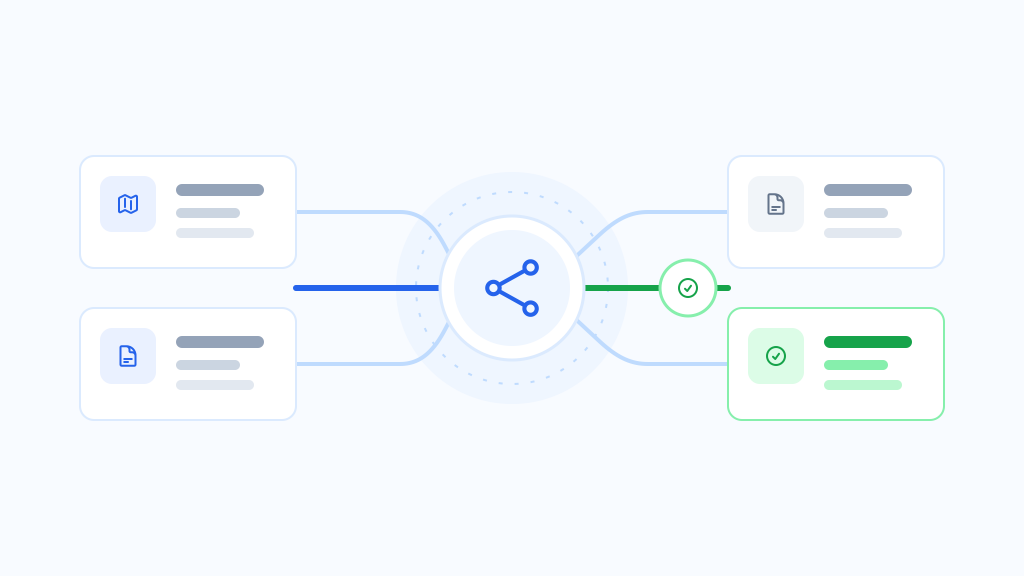

A WordPress “theme switcher” can mean three different things: previewing another installed theme for an authorized user, activating a theme for the whole site, or serving a different theme only on selected routes. Those actions have different effects on visitors, templates, navigation, metadata, and fallback.
WordPress normally keeps one theme active across the site. Activating another theme changes the public theme immediately. If your goal is to review a redesign or migrate only part of a complex site, full activation may be broader than you need.
What happens when you switch a WordPress theme?
When you activate a theme under Appearance → Themes, WordPress starts using that theme for the site. The theme can change more than colors and typography: it can provide templates, template parts, navigation behavior, widget areas, and front-end code.
Your posts, pages, users, and database do not disappear simply because a theme changes. However, the way that content is rendered can change substantially. Before activation, check representative pages, archives, search results, forms, commerce routes, structured data, analytics, and performance.
Three workflows people mean by “theme switcher”
1. Preview another theme
Use a preview when one authorized person or team needs to inspect another installed theme while ordinary visitors continue to see the public routing result.
A preview is useful for checking representative content and identifying obvious template or styling issues. It is not complete production proof. Caching, integrations, anonymous sessions, and real transaction paths still need their own validation.
2. Activate another theme site-wide
Use normal WordPress theme activation when the replacement theme is ready for every important public route and your team has a tested launch and fallback plan.
This is the simplest final state: one active theme serves the site. It is also the broadest change because every route moves at once.
3. Route selected content to another theme
Selective routing applies another installed theme only when a request matches a configured route. Unmatched requests continue through the active WordPress theme.
This model fits gradual migrations. A team can begin with one page, a post type, a taxonomy archive, or another supported route; validate the result; and then expand the assignment deliberately.
ThemeRouter is built for the third workflow. It is a WordPress plugin for controlled, gradual theme migration, not a user-facing or generic theme switcher.
Which workflow should you choose?
| Goal | Best starting workflow | What to verify |
|---|---|---|
| Inspect a redesign privately | Authorized private preview | Template coverage, navigation, assets, forms, and responsive behavior |
| Replace the design everywhere | Site-wide activation | Full route inventory, caches, monitoring, and a tested fallback plan |
| Migrate one content area at a time | Selective route-based delivery | Route precedence, active-theme fallback, related archives, analytics, and SEO output |
| Let visitors choose a visual theme | A purpose-built visitor preference system | Persistence, accessibility, caching, privacy, and support scope |
Do not use route-based migration as a substitute for accessibility preferences such as color schemes, or as an unplanned experiment on visitors. The workflow should have a defined owner, scope, validation evidence, and pause criteria.
How controlled theme routing works
ThemeRouter evaluates a request against a defined precedence. A specific content assignment wins before broader route rules, while a request with no matching assignment falls back to the active theme.
- Install the destination theme without activating it site-wide.
- Use private preview to inspect representative content.
- Create the smallest useful route as a draft assignment.
- Enable the route after review and validate anonymous and cached requests.
- Use existing analytics, SEO, accessibility, performance, and business systems.
- Pause or remove the assignment if the release gate fails, or expand to related content after acceptance.
Pausing or removing an assignment returns that request to the active-theme fallback. This reverses the routing decision; it does not automatically undo content, menu, template, or configuration edits made elsewhere.
Plan for theme-owned configuration
Themes can represent navigation and site structure differently. A classic theme may use classic menus while a block theme uses Navigation blocks. ThemeRouter includes Menu Sync to support a reviewed migration between those models.
Treat menu changes as their own operation. Confirm the source and destination, run the sync deliberately, inspect the result, and keep a record of the previous state. Menu Sync copies changes forward; it does not merge two independently edited navigation structures.
ThemeRouter also provides versioned settings export and import. Use that to transfer or back up a supported ThemeRouter configuration, not WordPress content, theme files, uploads, or an entire site.
What to test before expanding a routed theme
- The intended single pages and their related archives
- Header, footer, navigation, breadcrumbs, and search
- Canonical URLs, titles, descriptions, headings, and structured data
- Forms, authentication, accounts, cart, and checkout where relevant
- Analytics, consent, cache variation, and purge behavior
- Desktop, narrow mobile, keyboard, and screen-reader interaction
- The active-theme fallback after pausing the assignment
For a complete sequence, use the WordPress theme migration checklist and the theme migration SEO checklist.
When a selective route is the wrong tool
Use one active theme when the full destination is already validated and maintaining two theme systems would add more complexity than it removes. Avoid a mixed-theme period when shared plugins, menus, templates, or caches cannot be validated independently by route.
Selective routing reduces the scope of each release. It does not remove the need for testing.
Frequently asked questions
WordPress normally has one active theme. A routing layer can serve another installed theme for matched front-end requests while unmatched requests continue through the active theme.
A route-based tool can assign another installed theme to an individual page. Test the page’s header, footer, navigation, assets, metadata, forms, and cache behavior before making the assignment public.
Yes. ThemeRouter private preview uses an authorized preview flow so ordinary visitors continue to receive the public routing result. A private preview is a review step, not a substitute for anonymous production validation.
Activating or routing a theme does not itself delete posts, pages, users, or the database. It can change how content and theme-owned settings are rendered, so back up the site and document navigation, widgets, templates, and Global Styles before a migration.
No. ThemeRouter is designed for controlled, route-based theme migration. It lets a team preview an installed theme privately and assign themes to selected routes while unmatched requests use the active theme.
Choose the smallest complete migration step
If every route is ready, normal WordPress activation is the cleanest end state. If the redesign needs to move in controlled releases, see how ThemeRouter works.
Leave a Reply